
Artificial intelligence (AI) is transforming how businesses operate, and implementing AI strategies can significantly enhance efficiency and decision-making. One key area where AI can be leveraged is in cloud services, particularly with platforms like Azure. In this blog, we will explore how to configure the Azure Service Graph Connector, a powerful tool for integrating Azure virtual machine data with your ServiceNow instance. By the end of this guide, you will understand the essential steps to effectively implement artificial intelligence in your IT workflows, enhancing your operational capabilities.
Understanding Azure and Its Capabilities
Azure is a comprehensive cloud computing platform developed by Microsoft. It provides a wide range of services, including virtual machines, databases, and AI capabilities, allowing businesses to create, deploy, and manage applications through Microsoft-managed data centers. The Azure portal offers a user-friendly interface where users can monitor their resources, track changes, and manage services effectively.
What is the Azure Service Graph Connector?
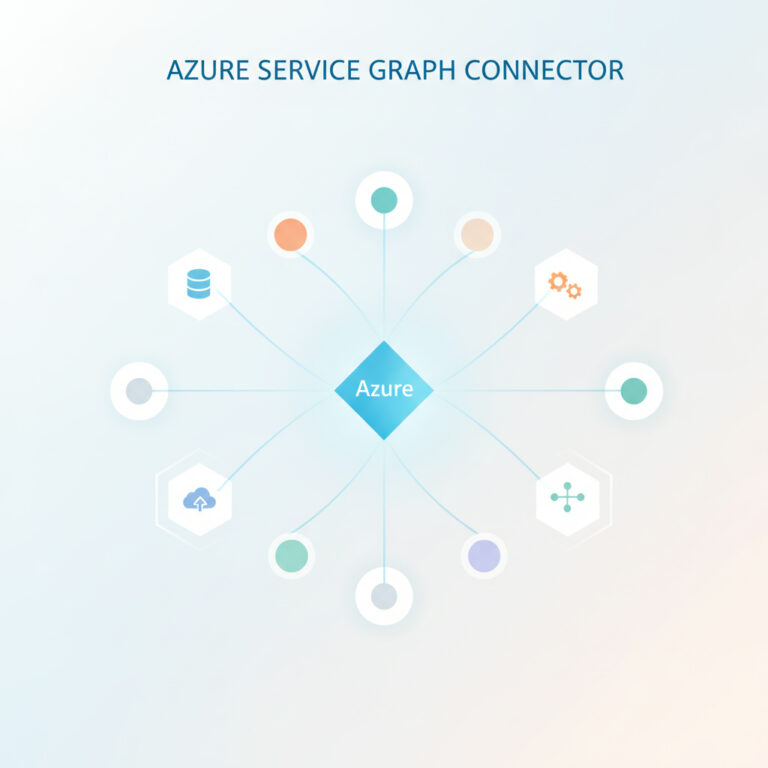
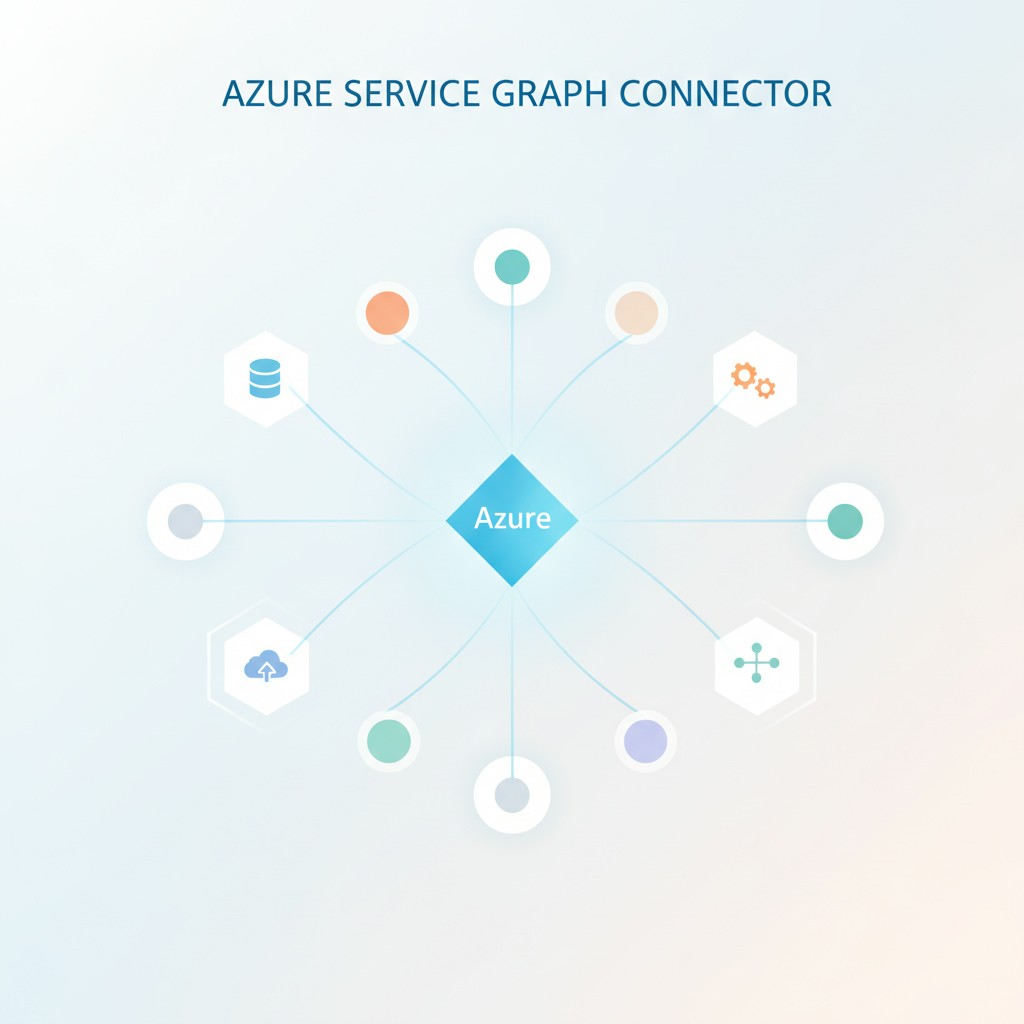
The Azure Service Graph Connector is an ingestion tool provided by ServiceNow that allows users to import virtual machine data from Azure into their ServiceNow instance. This tool enables organizations to automate the population of the Configuration Management Database (CMDB) with vital information regarding hardware and software configurations, thus streamlining IT operations and enhancing data accuracy. By implementing artificial intelligence through tools like the Azure Service Graph Connector, organizations can achieve better visibility and management of their IT assets.
Step-by-Step Guide to Configure Azure Service Graph Connector
To successfully implement AI with the Azure Service Graph Connector, follow these essential steps:
1. Accessing the ServiceNow Instance
Begin by logging into your ServiceNow instance. In the search bar, type “Azure” and select the setup option to start configuring the connector. Ensure that you have the necessary permissions to manage data sources and scheduled imports, as these are essential for the connector to function correctly.
2. Creating a Connection for Hardware Import
In the setup interface, create a connection for hardware imports. Click on the configuration option and enter the required details, including the client ID, secret key, and tenant ID. After saving the connection, obtain the authentication token to establish a secure link between Azure and ServiceNow. This connection will enable the import of hardware data from your Azure subscription.
3. Testing the Connection
Once the hardware connection is created, it’s crucial to test the connection to confirm that it is functioning correctly. Navigate to the test connection option and check for a successful response. A successful connection is vital for the subsequent steps in the configuration process.
4. Setting Up Scheduled Import Jobs
After confirming the connection, set up scheduled import jobs for the Azure virtual machines. This involves activating the job you created and ensuring it runs at defined intervals to keep your data updated automatically. This automation is a critical feature of implementing AI in your operational workflows, allowing for real-time data management.
5. Creating a Software Import Connection
Following the hardware import setup, repeat the process to create a connection for software imports. Provide the necessary details, including the workspace ID, and test this connection as well. This step is essential for capturing software data used across your virtual machines.
Setting Up Extended Discovery with Azure
Extended discovery, or deep discovery, is an advanced feature that enables the collection of additional data from virtual machines, such as running processes, TCP connections, and more. To configure this:
1. Download the Required Scripts: Access the guided setup to download scripts needed for both Windows and Linux virtual machines.
2. Configure the Storage Account: Your Azure administrator should create a dedicated storage account, establishing two containers—one for script files and another for results. This setup is crucial for the successful execution of run commands.
3. Final Connection Properties Configuration: Link the run command configuration with the appropriate storage account, subscription ID, and resource group. Then save these settings to complete the setup.
Conclusion: Transforming Operations with AI
By implementing artificial intelligence through the Azure Service Graph Connector, organizations can significantly enhance their IT operations. This integration not only streamlines data management processes but also provides deeper insights into system performance and configurations. For those looking to leverage AI effectively, consider collaborating with an expert AI agency to optimize your implementation strategies. Learn more about how to implement artificial intelligence in your organization and stay ahead of the competition.
For further insights, check out Microsoft Azure Documentation to explore more about Azure capabilities and best practices.